APP INSTRUCTIONS

How do I pay with the app?
If your team uses the app for mobile payments, follow the instructions below to pay.
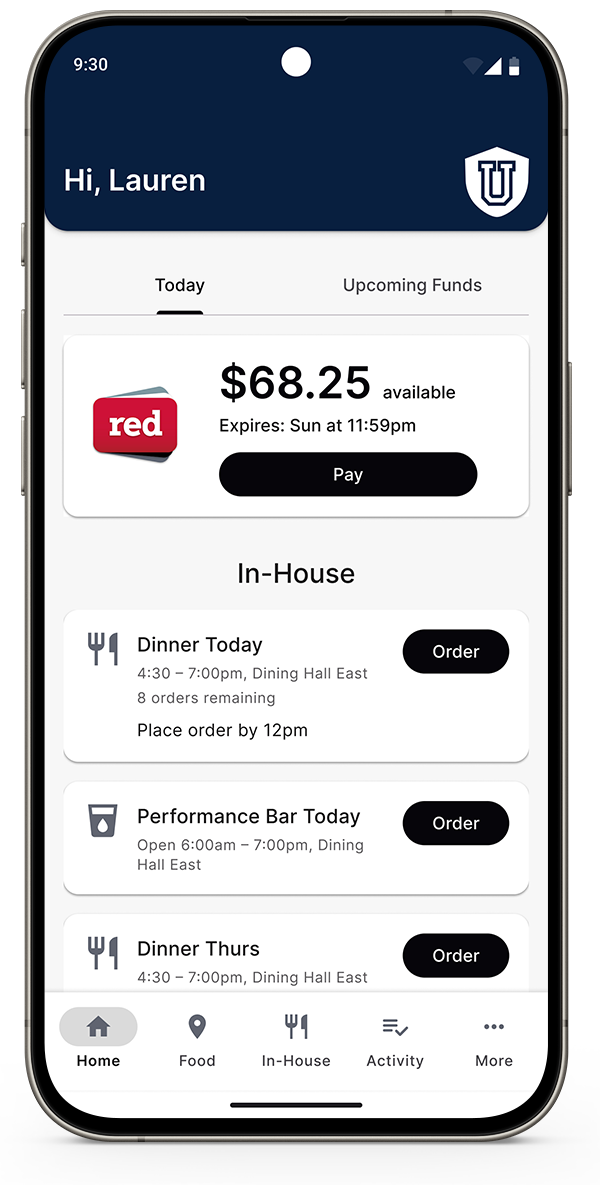
Screenshot of Red Card App home screen with a black Pay button
Step 1: Tap the Pay button on the Home screen.
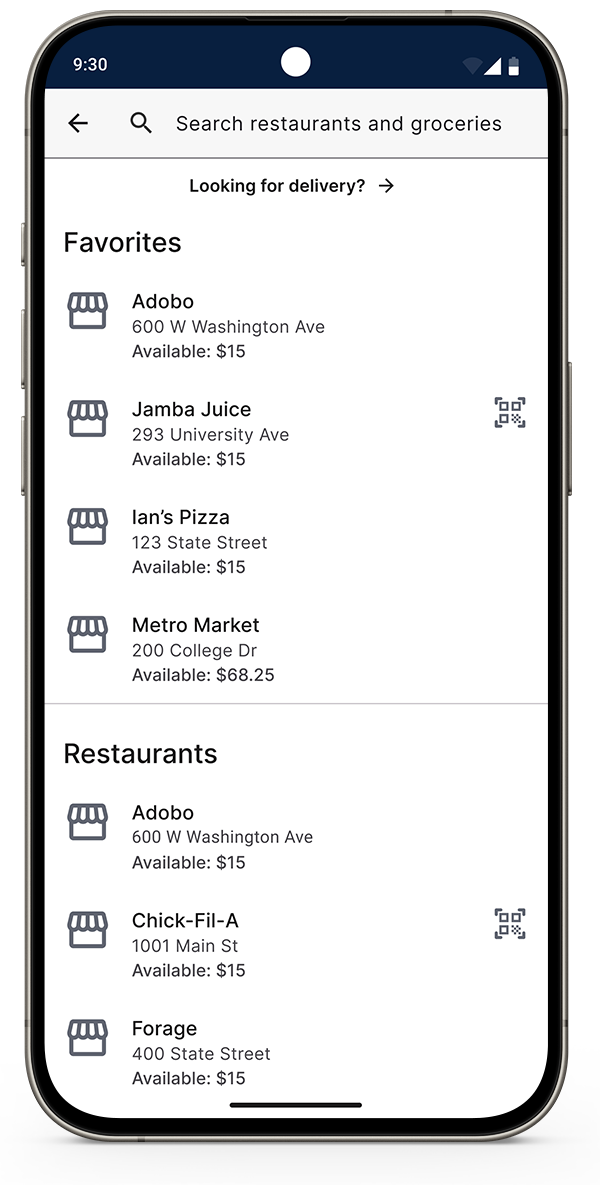
Screenshot of Red Card App showing a list of restaurants
Step 2: Scroll to the restaurant that you’re at and tap its name. You can also search by the business’s name.
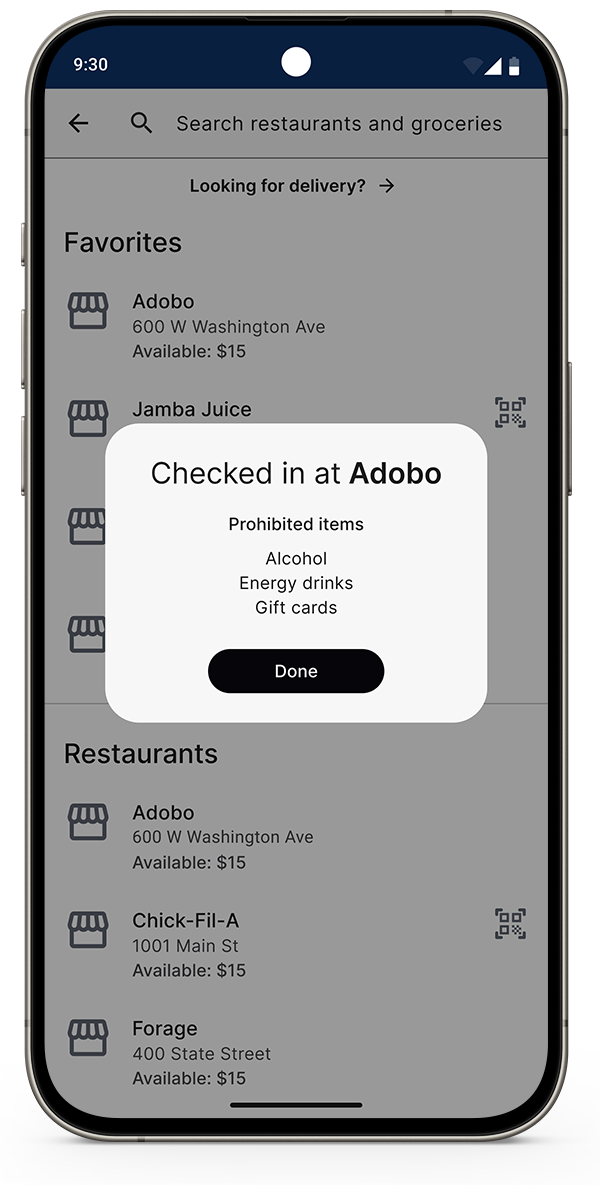
Screenshot of Red Card App showing a confirmation message that says Checked in
Step 3: If you see a message that you are checked in, you are done. If you see a QR code, show it to the cashier so they can scan it. In both cases, your name will appear to the restaurant’s cashier so they can complete the transaction.
How do I order with the app?
If your team uses the app for In-House food orders or catering orders, follow the instructions below.
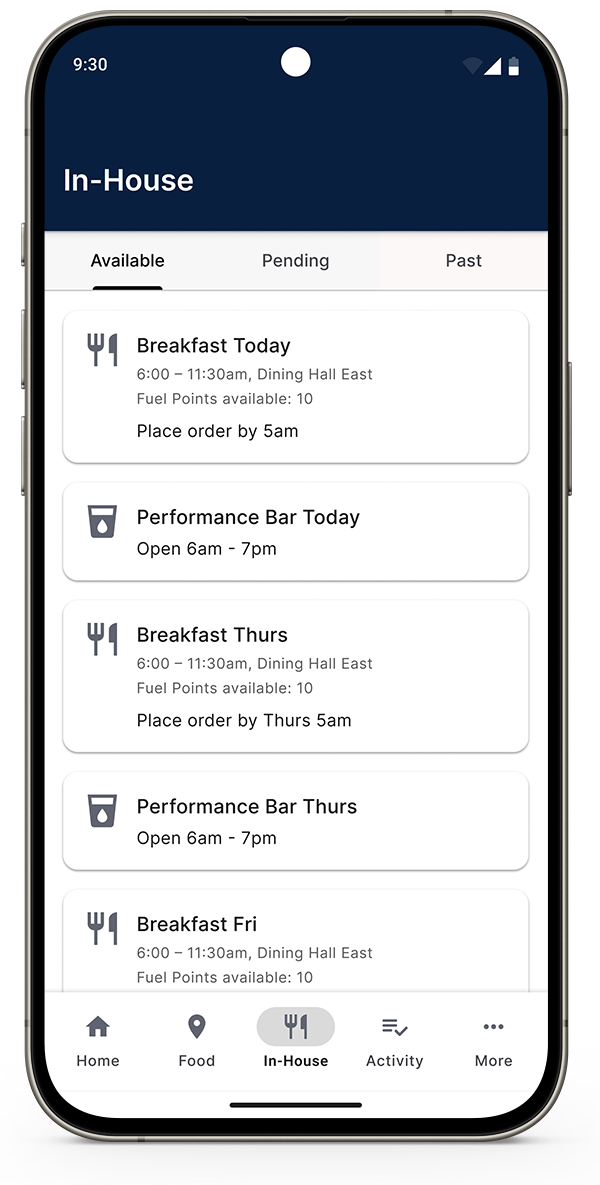
Screenshot of Red Card App In-House screen showing a list of meals to order
Step 1: Go to In-House to view all orders. The orders coming up next also appear on Home.
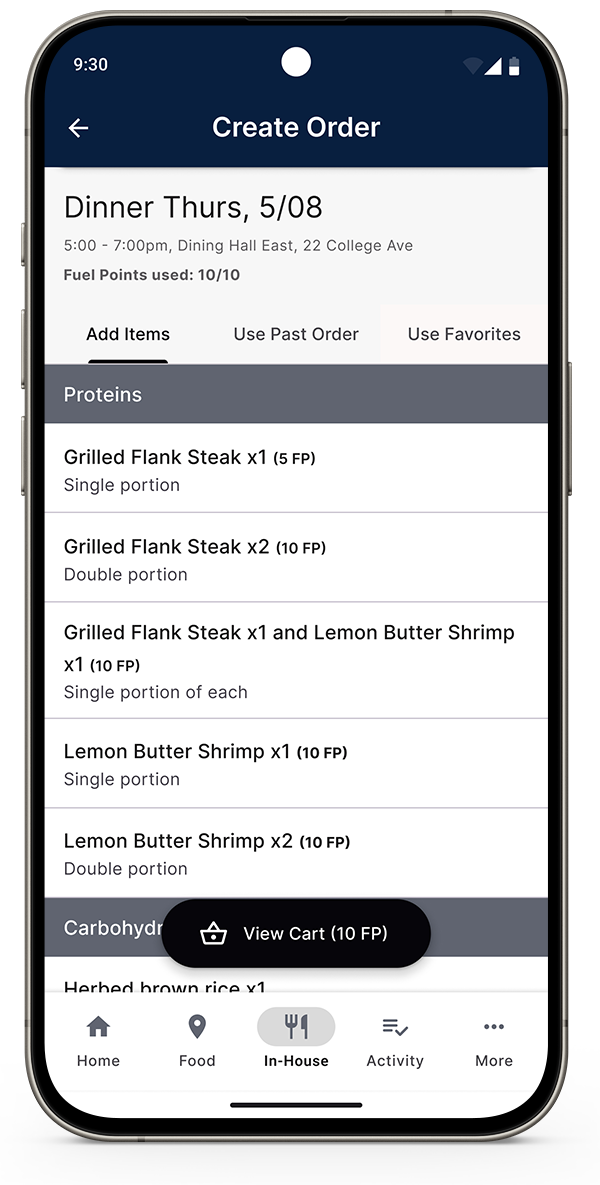
Screenshot of Red Card App showing a dinner menu to order from
Step 2: Select an order to see the available items and options. Add what you’d like to the Cart.
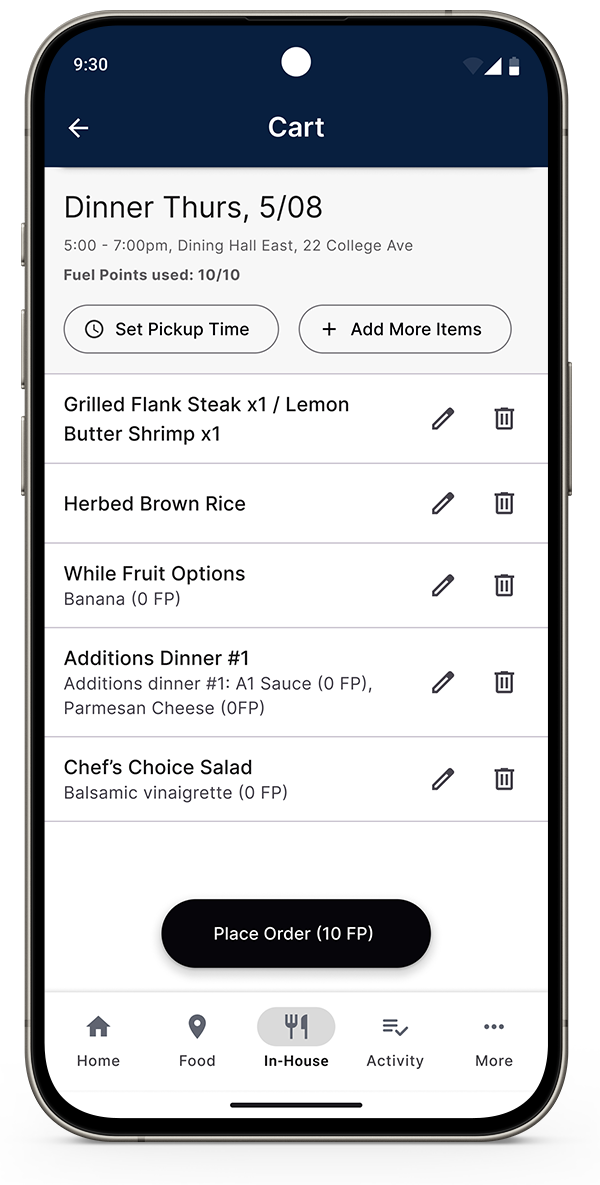
Screenshot of Red Card App showing food options added to a cart for a dinner
Step 3: When you’re ready to place your order, click the View Cart button. At the top of the Cart screen, set your pickup time and then tap Place Order.
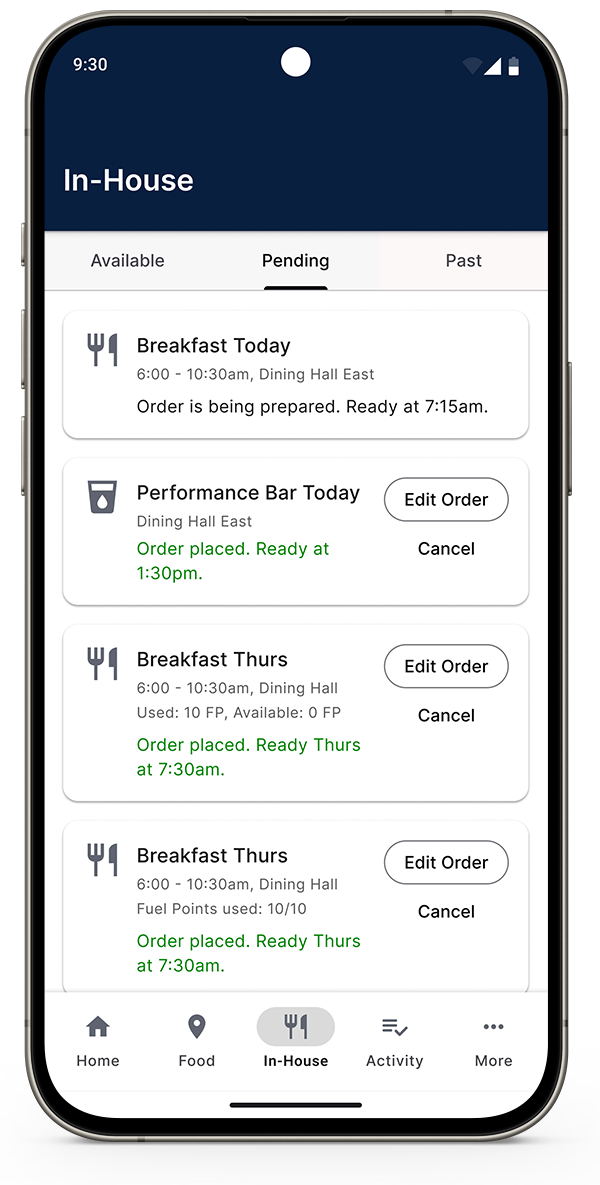
Screenshot of Red Card App In-House screen showing a list of meals indicating that order has been placed and a pickup time
Step 4: To edit an order, tap the Pending tab. You can make changes until the order deadline or preparation begins, whichever comes first.
What if I forget my login information?
To reset your password, click “Forgot Password?” on the login screen. You then enter your email address. An email will be sent to you with a reminder of your username and a link to reset your password.